

In today’s digital workflow, it is essential to convert scanned documents to editable text. This is because, in today’s digital world, information has to be updated, reused, and shared quickly. Since scanned PDF documents are nothing but images, it is essential to use Optical Character Recognition (OCR) to transform the information into editable text. Today, it is possible to do this easily with the help of tools like Systweak PDF Editor, thereby preventing users from retyping information, which helps to save time and edit a scanned PDF.
Definition of Optical Character Recognition & Explanation
The abbreviation OCR means Optical Character Recognition. Optical character recognition is a technology that enables the interpretation of the text in scanned PDFs and the modification of the PDF so that the text in the PDF can become editable. This is achieved by the use of image recognition, whereby patterns like alphabets, symbols, and words are identified and then modified to text format. With today’s technological advancement, OCR technology has been improved through the integration of AI technology in advanced software like Systweak PDF editor.
Expert-Recommended Methods To Convert A Scanned PDF To Editable Text Offline
Method 1 – Use Systweak PDF Editor
Systweak PDF Editor is one of the best offline PDF OCR software programs that allows users to edit a scanned PDF and manage the pages within the PDF. It has many features like adding annotations, watermarks, passwords, digital signatures, and more. Users can compress PDFs, convert PDFs into other formats and vice versa, as well as create fillable forms, and add, remove, rotate, reorder pages, etc., within the PDF using this offline PDF editor. Here are the steps to convert a scanned PDF to editable text without the internet.
1. Download & Install Systweak PDF Editor.
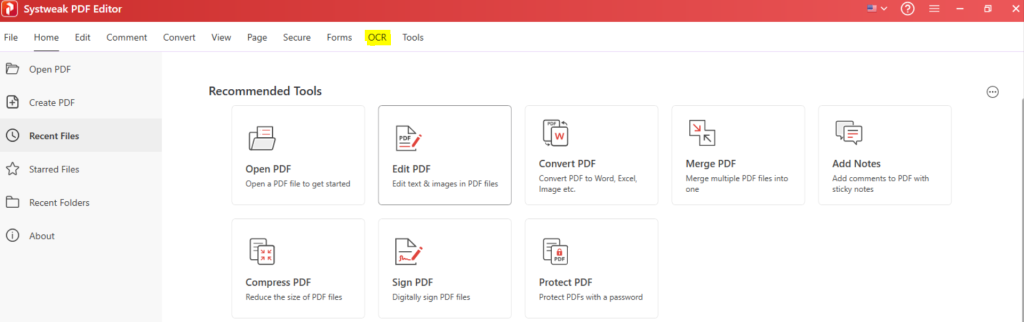
2. Open the app and click on the OCR tab on the topmost ribbon.
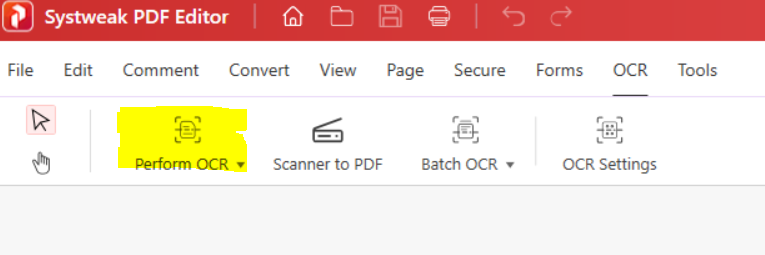
3. Click on the Perform OCR button and choose OCR from PDF.
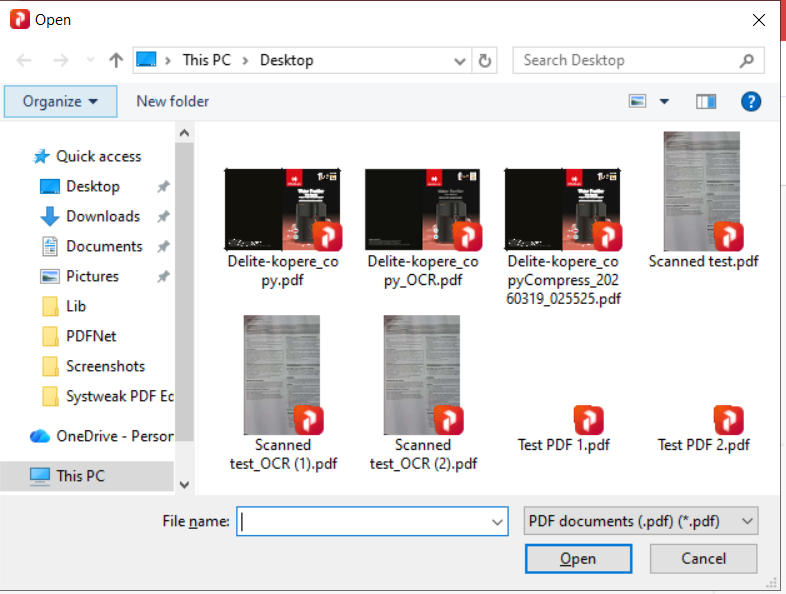
4. Choose the PDF file you wish to convert and click on the Open button.
5. The Systweak PDF Editor will detect if the PDF requires OCR, load the PDF within the app and provide the button to perform OCR.

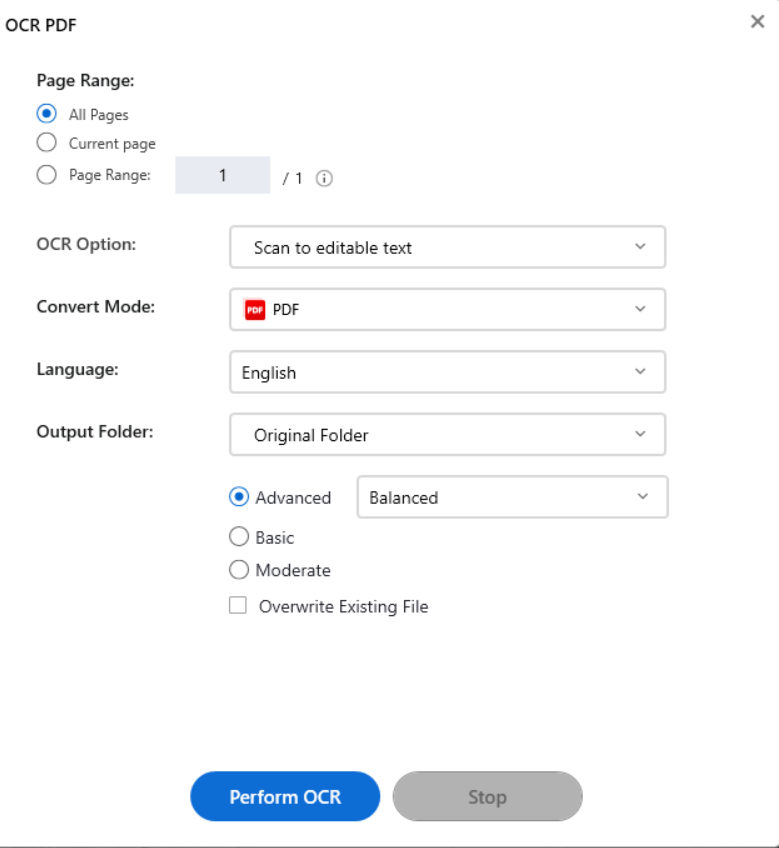
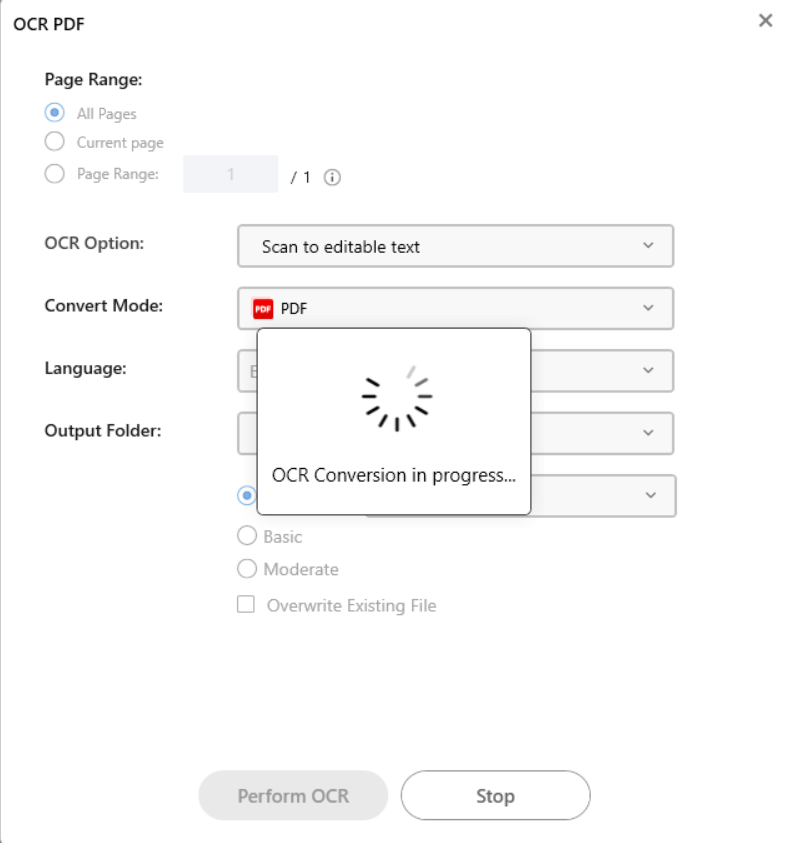
6. Choose the required options that include Language, Output folder, Output format etc, and click on the Perform OCR button.
7. The PDF will be converted to an editable text format and open in the app.
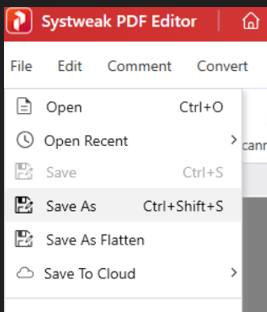
8. Click on the File tab and choose Save As, provide a new name and location where you wish to save the new editable PDF.
Note – Systweak PDF Editor allows users to perform Batch OCR on multiple scanned PDFs at once, making it easier and faster to convert scanned PDF to text offline.
Method 2 – Use Microsoft OneNote
OneNote is a free software offered by Microsoft, which comes pre-installed in all Windows PCs. However, have you heard about its amazing capability of extracting text from a scanned PDF or picture without being connected to the Internet? If you do not find OneNote software installed on your computer, you can get it from the Microsoft Store. The following are the instructions for the conversion process.
1. Launch the OneNote app by pressing the Windows key and typing OneNote.
2. Choose the relevant search, and the app will launch.
3. Click on the New section under My Notebook in the left panel.

4. Rename the section and click anywhere in the right panel of the app.
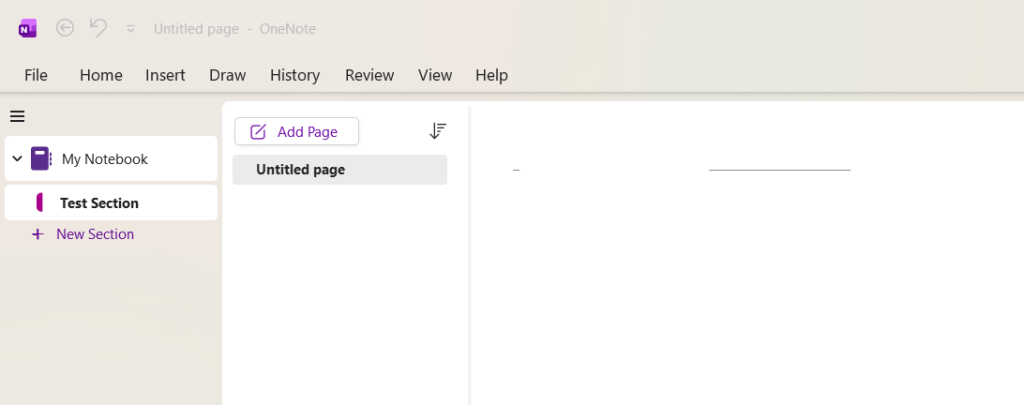
5. Now, click on the Insert tab at the top and choose File Printout.
6. Locate the scanned PDF on your PC and insert it into the OneNote app.
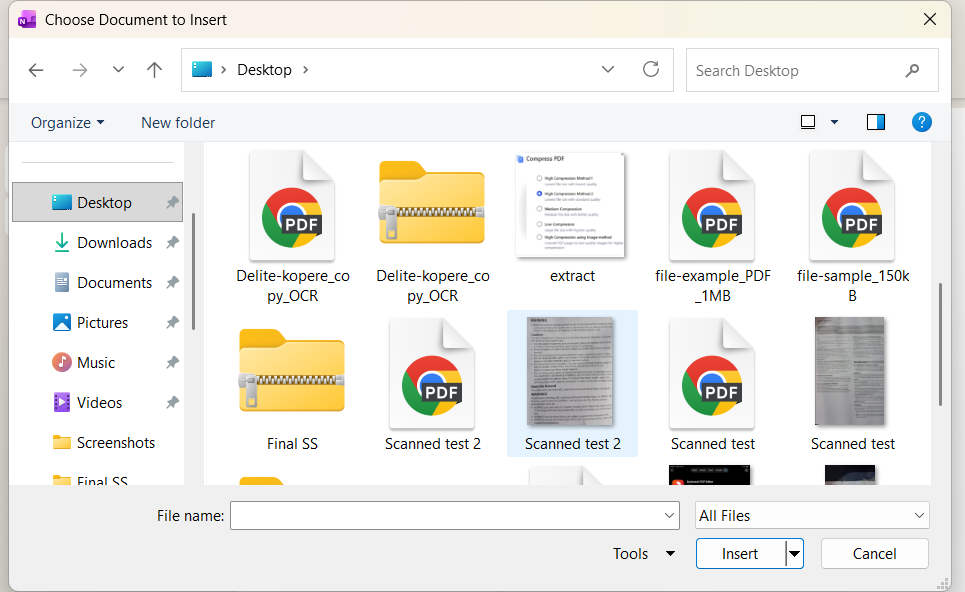
7. The PDF file will now be loaded as an image into the OneNote app.
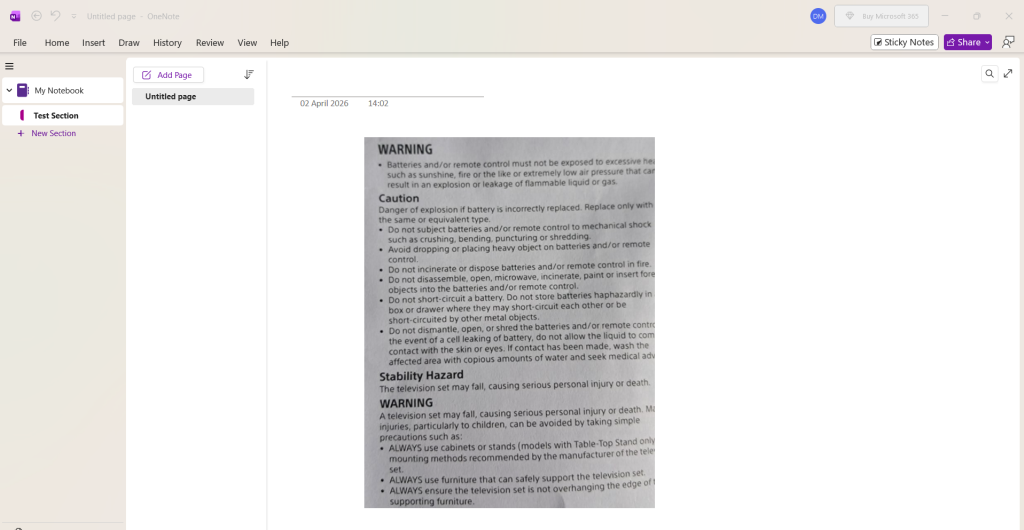
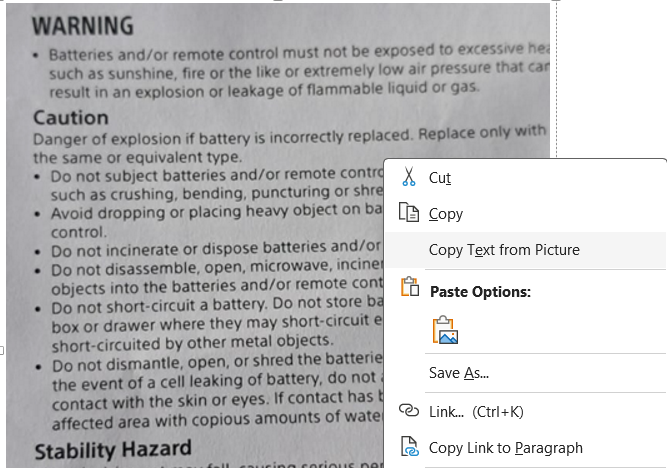
8. Right-click on the image and choose the “Copy Text From Picture” options and the text within the image/PDF will be copied to the Clipboard.
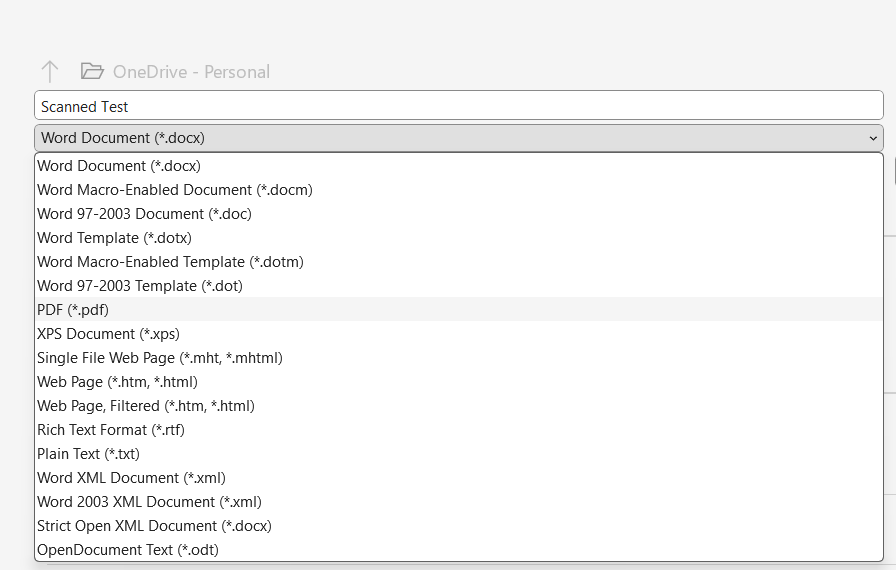
9. You can now open the MS Word App or any other app and paste the text by pressing Ctrl + V on your Keyboard. If you choose MS Word and paste the text there, then you can make changes to the text and save the document as a PDF easily.
Method 3 – Windows Snipping Tool
Another amazing tool that can convert scanned PDF to text offline is Windows own, all-new Snipping Tool, which is built into Windows 11. Here are the steps to convert Scanned Images and PDFs to editable and searchable text documents.
1. Open the PDF that you want to convert on your screen.
2. Now launch the Snipping tool and capture the part of the PDF that you wish to make editable.
3. The captured area will open in the Snipping Tool window.
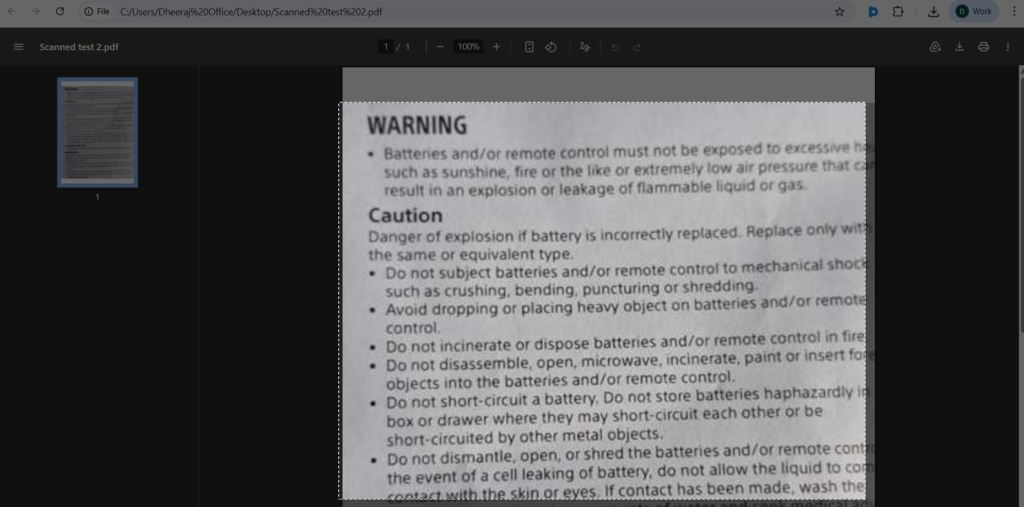
4. Click on the Scan Text button in the top center, and all the text will be highlighted.
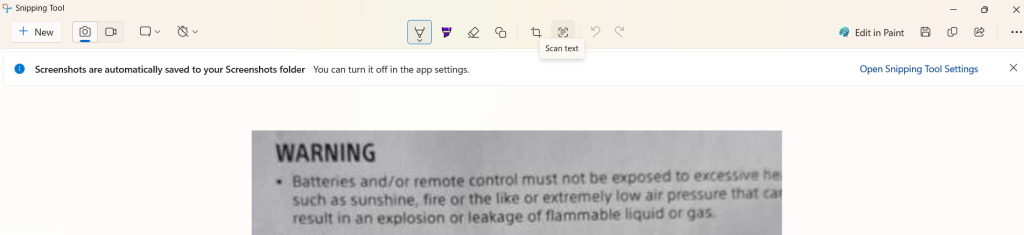
5. Right-click on the text and choose “Select All” and then choose Copy text.
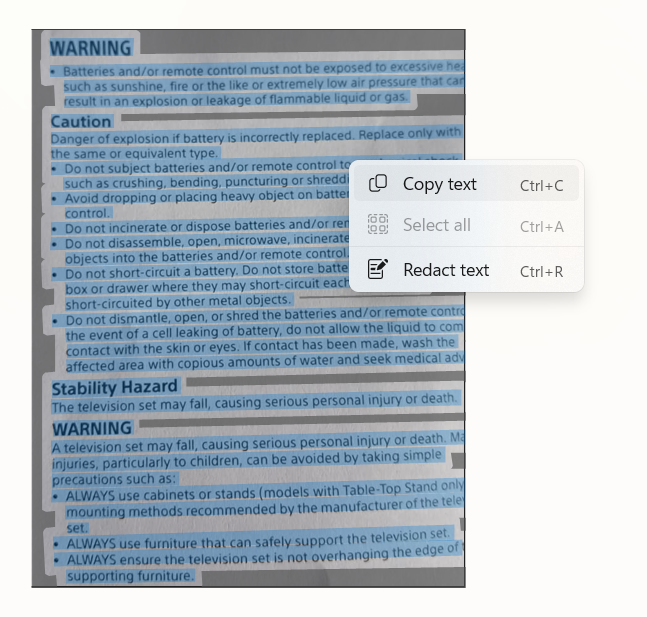
6. Open any word processing program like MS Word or Notepad and paste the text by pressing Ctrl + V.
Note – If you paste the text in MS Word and save it as a PDF, then this PDF will be editable and searchable in most PDF editor applications.
Method 4 – Microsoft Word
Microsoft Word is a word processor that includes many features, including OCR that will help you to edit a scanned PDF. You can consider it to be one of the best offline PDF OCR software. If you have MS Word installed, then you can try to open the PDF in the Word app. It will automatically perform OCR while importing the PDF. Here are the steps.
1. Open the MS Word app and click on Open.
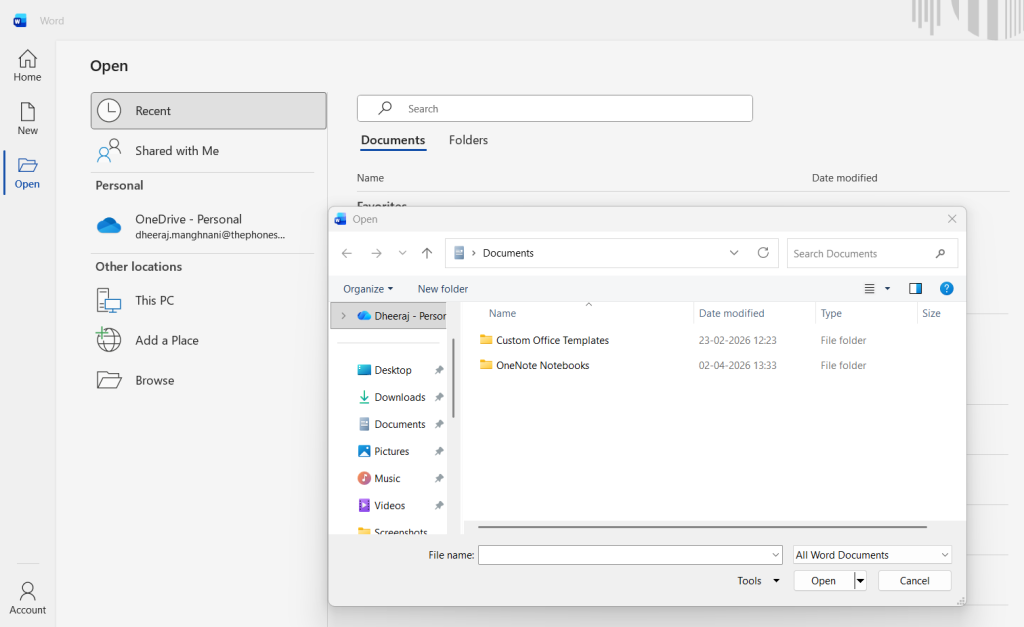
2. Choose the PDF you wish to convert. You will get an message prompt. Click on OK.
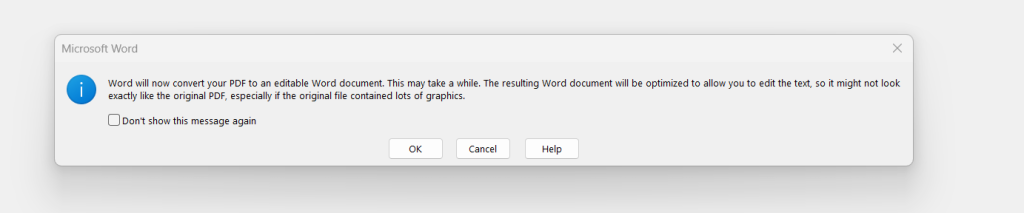
3. The PDF will now open in an editable and searchable mode.
Additional Tips – Points to Remember
1. Make sure the scan is clear and high-resolution, at least 300 DPI
2. Choose good OCR software, for instance Systweak PDF Editor or Adobe Acrobat, depending on your budget
3. Choose the appropriate language so that the process is easy and accurate
4. Do not use complex PDF files with things like tables or columns as they are unlikely to be identified properly
5. Ensure the PDF file is clear by cleaning up any noise and ensuring that the crop is done correctly
6. Do not use password-protected PDF files during conversion
7. Make sure you review the document for any mistakes
8. Choose the correct output format, for example Word or Excel
9. The manuscript may need corrections after conversion of the document
Conclusion
Depending on what you need from the PDF editor, there will be certain approaches to follow. When high accuracy and functionality are needed, one would consider using Systweak PDF Editor for an offline PDF editor solution. For infrequent usage, the functionality provided by default in your note-taking application would do just fine, too. Depending on what you need from the PDF editor, there will be certain approaches to follow. In any case, the approach you take must guarantee you the precision and convenience of the conversion process.
Meta – This article will help readers explore different methods to convert scanned PDF to editable and searchable text using offline tools without the internet.
